Go to Dungeon Scrawl
If you need to quickly navigate to Dungeon Scrawl just click the link below:
Dungeon Scrawl
If you need assistance, you can contact our support team via our Web Form.
Dungeon Scrawl Pro is a subscription that unlocks advanced tools and features.
- Dungeon Scrawl Pro is available for $5 per month, or with a saving of over 25% on a yearly plan.
- Already a Roll20 subscriber? Dungeon Scrawl Pro features are included with the Roll20 Elite tier.
It includes everything in the free version, plus the features described below.
Cloud Autosave and Map Library
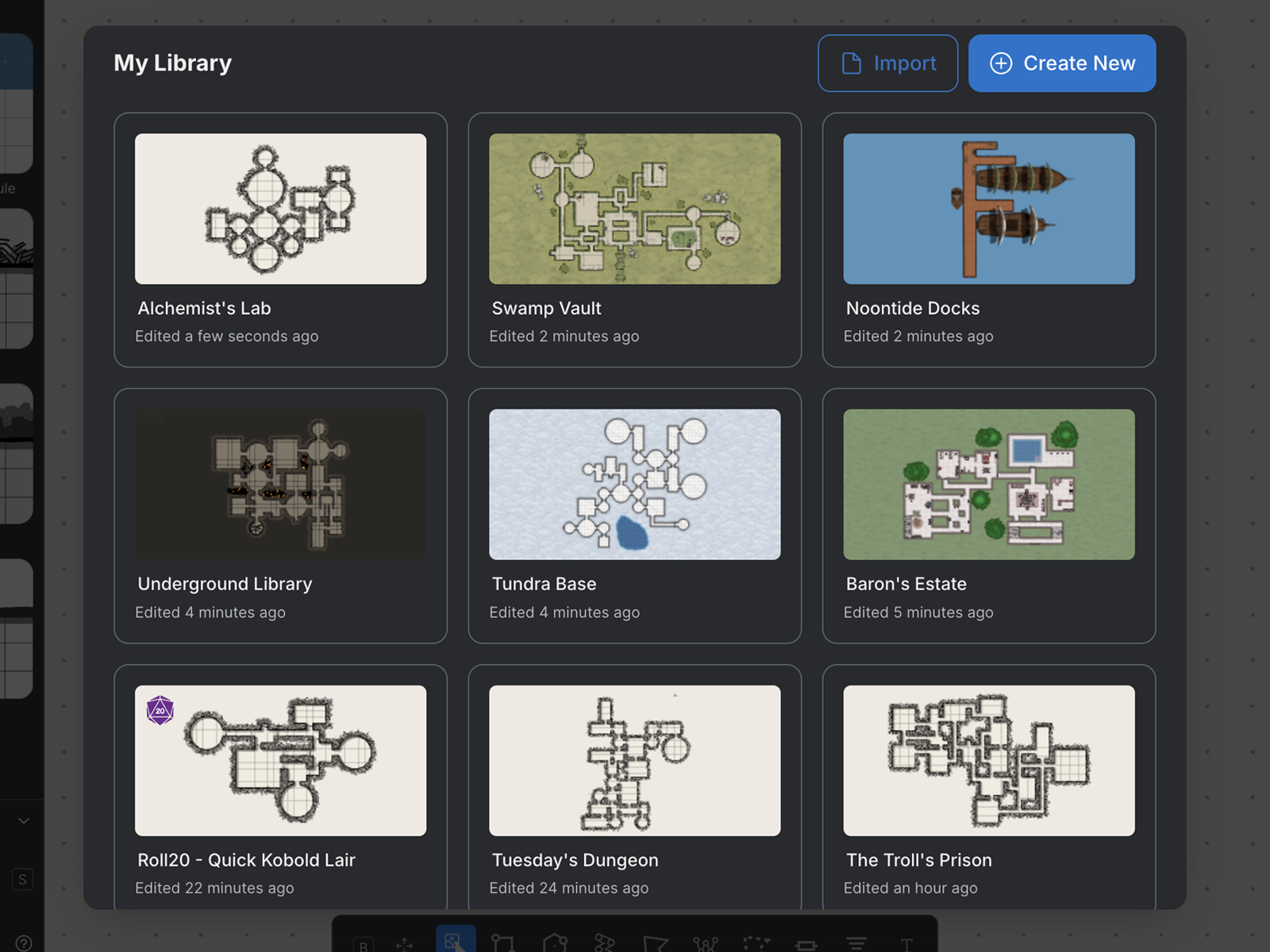
Never lose progress. With Pro, your maps are saved to the cloud automatically as you work, no manual saving required. Access all your maps from the Library at any time via File → Library or ⌘/Ctrl+O.
From the Library you can open, rename, delete, and create maps. Maps are ordered by most recently opened.
See Saving and Managing Maps for more information.
World Building Presets
Add environmental features to your maps quickly, including forests, rivers, roads, and lava fields. World Building Presets work the same way as Dungeon Presets. Apply them to a new or existing layer from the Presets panel.
See Scrawl/Presets for more information.
Custom Presets
Save your own layer styles and reuse them across maps and sessions. Build a personal library of styles and apply them with a single click, just like the built-in Dungeon Presets.
See Scrawl/Presets for more information.
Textures
Floor Textures
Apply surface textures such as wood, stone, marble, and more directly to drawn areas on your map. Floor Textures are automatically masked within shapes and can be scaled, rotated, and colour-blended to suit your design. Choose from several options per layer, each available in colour or black and white.
See Layer Settings for more information.
Background Textures
Define the environment of your map at a glance by applying a texture across the entire background - grass, snow, cobblestones, and more. Choose from several options, each available in colour or black and white. Scale and colour-blend each texture to match your design.
See Layer Settings for more information.
Overlay Textures
Apply a paper texture overlay to your entire map to give it an aged or hand-drawn appearance. Control the scale and opacity of the texture from the Textures panel in the Sidebar Menu.
See Textures for more information.
Saved Image Favorites
Save up to 100 uploaded images as favorites, building a personal library of tokens and assets that are accessible across maps and sessions. Import tokens from Roll20, DriveThruRPG, or other marketplaces and keep them within reach at all times.
See Images for more information.
Shareable Map Links
Share your map with anyone using a link — no account required to view it. Recipients can save a copy to their own library, but cannot edit your original map.
See Export/Sharing for more information.
PDF and High-Resolution Export
Export print-ready PDFs with real-world cell sizes, paper sizes, and printer margins handled automatically. High-Resolution export uses Dungeon Scrawl's servers to surpass standard browser resolution limits and allows export at greater than 100 px per cell for high-quality prints.
See Export/Sharing for more information.
Lighting
Place light sources on your map and customise their colour and intensity to guide player focus, track line of sight, and add atmosphere. Control ambient background lighting and toggle light blocking per layer.
Note: the Lighting feature is currently under development. Exports do not yet include lighting effects, and performance may be affected when using a large number of lights.
See Lighting for more information.
Multiple maps in one file
Work across connected maps in a single .ds file, useful for mega-dungeons, towns, multi-floor buildings, and large projects. Add maps via the Maps Settings panel in the right sidebar and switch between them without leaving the application.
See Saving and Managing Maps for more information.
Commercial Use
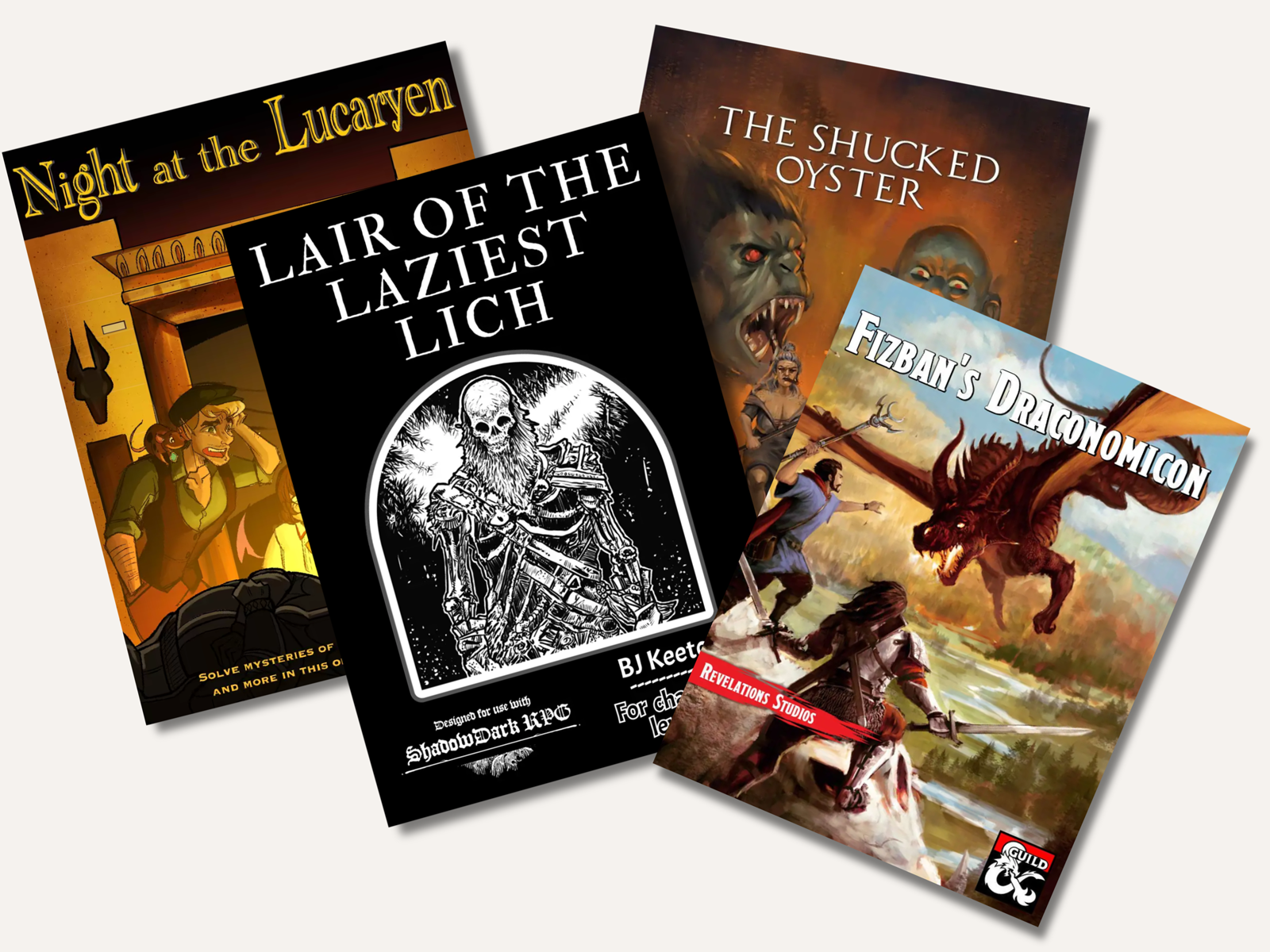
Publish and sell maps created with Dungeon Scrawl on platforms such as DriveThruRPG, Dungeon Masters Guild, and more. A Pro subscription active at the time of map creation is required for commercial use. Attribution is required. See Commercial Use Policy for full details.